Specifiction is reader-supported. When you buy through links on our site, we may earn an affiliate commission. As an Amazon Associate I earn from qualifying purchases. Learn more
To compose a song with AI voice and words, write a short lyric with clear sections, choose a music generator that creates vocals from lyrics, and refine the words and performance direction together. Suno, Udio, and Mureka list vocal song generation; SongIntent can generate songs from lyrics, flows, beats, or melodies. Their listed capabilities differ, so choose by the next action you need: generate a complete vocal track, edit a vocal-led result, or develop a lyric and melody idea.
Prepare Words That Can Be Sung
Before generating audio, decide what the singer should communicate and how the words should fit the music. A lyric that reads well on a screen can still be hard to sing if its lines are crowded or its key phrase changes every time.
As an Amazon Associate I earn from qualifying purchases.
Recommended Free Tools
- Write the central line. State the song’s main feeling or idea in one memorable sentence. Use that as the chorus hook or the line the chorus builds toward.
- Give each section a job. For example, let a verse set a scene, a pre-chorus increase tension, and a chorus deliver the main idea. Label sections clearly, such as [Verse 1] and [Chorus]; Udio lists lyric editing, while SongIntent lists structure and line-level revisions.
- Keep lines easy to phrase. Read each line aloud at the pace you imagine. If you run out of breath or stumble over a phrase, shorten it or use simpler stresses. This is a writing check, not a claim that a particular platform scans lyrics for singability.
- Use repetition deliberately. Repeat the hook where you want listeners to recognize it. Save new details for the verses so the vocal has a clear progression.
Choose A Generator For The Job
The listed products support different parts of this process. Availability of a particular voice, language, genre, or control is not established here; check the vendor’s current site before building a project around that requirement.
| Product | Listed fit for vocal composition | Relevant constraint |
|---|---|---|
| Suno | Generates songs with vocals, lyrics, instrumentation, and production; supports editing, remixing, extensions, section replacement, and stem export. | The Free Plan does not include commercial rights or stem separation. Pro downloads are limited to 20 songs per month. |
| Udio | Generates vocal or instrumental songs from text prompts and lyrics; supports lyric edits, voice references, audio transformations, and timeline editing. | Audio, video, and stem downloads are disabled during the transition period; stem separation is available, but stem export is currently disabled. |
| Mureka | Generates full songs from text, lyrics, styles, or reference audio; lists vocal generation, voice cloning, multitrack editing, stem separation, and audio/MIDI export. | Mureka Studio is reserved for Premier; splitting up to 12 stems is available only on Premier. |
| SongIntent | Generates complete songs from ideas, lyrics, flows, beats, or melodies; lists cadence capture, melody sketches, structure, and line-level revisions. | Free allows one render and five AI assists per month, with one active project. The product is web-only. |
Build A Vocal Prompt
Give the generator the information it can act on: the song’s subject, vocal presence, energy, arrangement, and section changes. Keep the lyric in its own labeled block so it is easy to spot and revise. These examples are prompt-writing patterns, not guaranteed controls or genre-specific support.
Shopping ad
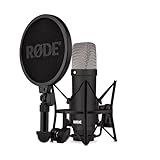
- COMPLETE VOCAL SETUP: shock mount, pop filter and XLR cable included, add an interface and record
- THE SOUND OF HIT RECORDS: the legendary NT1 large-diaphragm condenser voicing trusted in studios for two decades
- WHISPER-QUIET: among the lowest self-noise microphones ever made, nothing between you and the take
- BUILT FOR VOCALS AND STREAMS: tight cardioid pattern focuses on the voice, rejects the room
- IN THE BOX: NT1 Signature (Black), SM6 shock mount with pop filter, XLR cable and dust cover
Start With A Clear Brief
Try a compact direction such as: “A reflective song about leaving a familiar place. Lead vocal stays close and restrained in the verses, then grows more open on the chorus. Keep the arrangement sparse at first and add weight at the chorus. Make the words clear and preserve the section labels.” Add your own lyric below it, with a blank line between the prompt and the labeled sections.
Direct The Voice In Musical Terms
Describe audible outcomes rather than relying on a vague label such as “good voice.” For example, ask for a restrained verse, a stronger chorus, clear consonants, or a softer final line. If the result rushes a line, simplify that line or ask for more space in the phrasing. Do not assume a tool offers a specific vocal control unless its current product details say so.
What’s actually slowing this PC down?
Pick the symptom - the matching free tool is one click away.
Quick Recap
Shopping ad

- 【Ready to use Recording Studio Microphone】This studio condenser microphone features a USB output, providing a direct and convenient plug-and-play connection to your PC, smartphone, or laptop. Perfect for podcasting, vocal recording and music production, the DJM5 condenser microphone delivers high-quality sound without the need for additional hardware.
- 【Exceptional Sound Quality 】This condenser microphone uses cardioid polar pattern, 16mm diaphragm, 192kHz/24Bit sampling rate and 30Hz‑16kHz frequency response. It delivers clean sound for podcasting, vocal recording and streaming.
- 【Multifunctional Condenser Mic】This versatile condenser microphone supports 5V voltage and includes features like echo control, volume adjustment (+/-), a 3.5mm monitor headphone jack, and a mute button. Ideal for podcasting, home studio setups, and live broadcasting, the DJM5 is an all-in-one solution for high-quality audio
- 【Foldable Isolation Shield】The microphone isolation shield is made of 5 high-density sound-absorbing panels with a triple acoustic design. Each panel is foldable and adjustable, ensuring optimal noise reduction for podcasting, recording vocals, and music production. The compact design of the DJM5 makes it easy to carry and set up anywhere. This product comes with isolation shields in black, rose gold, and white, allowing you to choose the color that best matches your style
- 【Compact and Lightweight Design】 The DJM5 kit includes a soundproof shield measuring 27.55in x 10.23in, a microphone measuring 6.3in x 1.96in, a tripod stand measuring 8.66in x 7.1in, and a 6in diameter shockproof filter. The entire kit weighs only 4.1lbs (1.86kg), making it easy to carry and set up
Shopping ad

- Groundbreaking studio condenser microphone that fuses the classic sound signature of the iconic NT1 with patented next-generation technology
- Connect to an audio interface or mixer via XLR, or plug directly into a computer via USB to record studio-grade sound in any setup – an all-in-one digital recording solution for the home or the studio
- Offers the classic warm, silky character, extremely low self-noise and high SPL handling capability that the original is revered for, perfect for a huge range of applications, from voiceovers and guitars to drums and piano
- Features RØDE’s ultra-low-noise, high-gain Revolution Preamp and high-resolution (up to 192kHz) analog-to-digital conversion for crystal-clear digital recordings
- Body machined from high-grade aluminium with nickel plating and military-grade ceramic coating, ensuring its ready to take on the rigours of recording day in, day out
Shopping ad
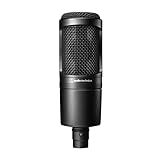
- The price/performance standard in side address studio condenser microphone technology
- Ideal for project/home studio applications
- High SPL handling and wide dynamic range provide unmatched versatility
- Custom engineered low mass diaphragm provides extended frequency response and superior transient response
- Cardioid polar pattern reduces pickup of sounds from the sides and rear, improving isolation of desired sound source.
Shopping ad

- [USB Output] Enables simple setup. USB studio recording microphone kit provides a direct convenient plug-and-play connection to pc and laptop without any additional hardware or drivers for recording vocals, podcasts and Skype. Studio microphone for recording vocals is never been easier to get high-quality sound for your voice and computer-based audio recordings. (Incompatible with Xbox)
- [Excellent Sound Quality] With rugged construction for durable performance, the vocal recording microphone, USB condenser mic for PC,offers a wide frequency response and handles high SPLs with ease. Ideal for project/home-studio applications. The cardioid condenser capsule captures crystal-clear audio from the front and avoid ambient noise when communicating/creating/recording. Comes ready to go with a desktop mic boom arm stand and 8.2ft USB cable, you're guaranteed to get great-sounding results.
- [Durable Arm Set] The podcast microphone bundle with versatile and sturdy broadcast suspension boom scissor arm with 180° up and down rotation, 135° forward and backward extension for optimal adjustment, for capturing your voice in podcast or voiceover. The double pop filter attached on the music recording microphone provides two layers of dissipation, removes the rush of air, minimize the popping sounds or cancel noise that can compromise your recording, great for studio as well as home use.
- [Easy to Attach] The streaming microphone for PC includes adjustable boom studio scissor arm stand that features a heavy-duty combo mount consisting of a sturdy C-clamp and a detachable desktop mount. With 13" fixed horizontal arm and offers a 30" reach, the low-profile, table-hugging design of audio recording microphone allows on-air talent to perform without facial obstruction to record in podcasting or make dubbing sounds for videos, use voice chat in Discord or online conference on Zoom or Skype.
- [The Accessory Package Includes] The studio microphone music recording comes with practical accessories for you to use in most of recording. The scissor arm stand is made out of all steel construction, sturdy and durable, a studio-grade shock mount, a double pop filter, premium 8.2' USB-B to USB-A/C cable, a podcast PC gaming microphone, a user manual and friendly Technical Support.
Generate And Revise In Short Passes
- Make a first version. Use the complete lyric and one concise prompt. Listen for whether the vocal carries the hook, whether sections feel distinct, and whether any words are obscured.
- Change one thing at a time. If the chorus lacks lift, adjust the chorus direction or arrangement request without rewriting every verse. If a phrase sounds awkward, revise that line before regenerating. This makes it easier to tell which change helped.
- Use editing features where listed. Suno lists section replacement and extensions; Udio lists lyric editing, transformations, and Sessions timeline refinement; SongIntent lists line-level revisions and melody sketches. Mureka lists remixing, extensions, and multitrack editing. The exact controls available to an account can depend on current product terms and plan, so check the vendor’s site.
- Keep a written version of each lyric. Save the words and note the prompt changes that produced a preferable take. This gives you a stable reference if a later generation changes a line or performance.
Check The Result Before Sharing
- Listen against the lyric. Follow every line and note altered, missing, or unclear words. Decide whether to correct the text, regenerate, or keep the take as an instrumental or rough reference.
- Check the musical arc. Ask whether the vocal intensity and arrangement support the story from opening verse to final chorus. If not, specify the section that needs a different energy rather than asking vaguely for a better song.
- Confirm the output you need. Suno lists stem export, but stem separation is excluded from its Free Plan. Udio currently disables audio, video, and stem downloads during its transition period. Mureka lists audio/MIDI export, with Mureka Studio and up-to-12-stem splitting limited to Premier. Verify the current plan and export terms before depending on a format.
- Review rights and consent. Suno’s Free Plan does not include commercial rights; check Suno’s current terms for other uses. Udio and Mureka list voice references or voice cloning capabilities, so use a real person’s voice only with that person’s consent and check each platform’s terms for permitted use. Do not assume that generating or editing a vocal clears rights to the words, voice, or resulting track.
Product prices and availability are accurate as of the date/time indicated and are subject to change. Any price and availability information displayed on Amazon at the time of purchase will apply.