Recommended Free Tools
Specifiction is reader-supported. When you buy through links on our site, we may earn an affiliate commission. As an Amazon Associate I earn from qualifying purchases. Learn more
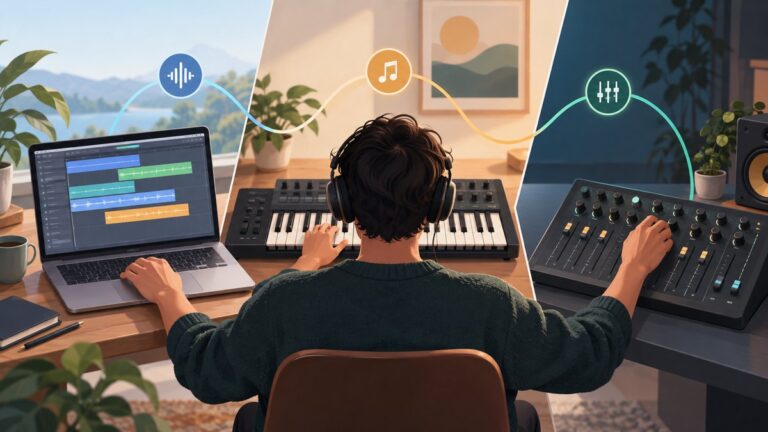
To write a rap song with AI, draft the lyrics and structure yourself, then use a song generator for a vocal-and-instrumental sketch or a beat maker for an instrumental to rap over. Treat “rap” as a prompt to try, not a confirmed feature: the available product details do not establish rap-specific genre support for any tool here. Check the vendor’s site before choosing a tool for that requirement.
Build A Rap Brief Before You Generate
Decide what the song is about, who is speaking, and what the listener should remember. Then set a scene and a point of view; a concrete subject gives you more to write toward than a broad mood.


As an Amazon Associate I earn from qualifying purchases.
- Subject: One sentence describing the song’s idea, such as “I’m learning to trust my own choices after a rough year.”
- Point of view: Choose first person, a character, or a direct address to someone.
- Energy: Pick a feel such as restrained, tense, or celebratory. These are creative directions, not confirmed product controls.
- Hook: Write a short phrase that states the central idea and can return between verses.
Write Lyrics With A Clear Shape
Start with a hook and two verses. Give each verse a job: the first can establish the situation, while the second shows what changed or what the speaker decides. Use specific images and details, then read the lines aloud to find awkward phrasing and places where the cadence falters.
- Write the hook: Keep its central phrase easy to remember. For example: “Still my road, still my name.”
- Draft verse one: Give the listener a place, a moment, and a problem. For example: “Last train rattles past the corner-store light / I count small wins on the walk home at night.” These are sample lyrics, not tool output.
- Draft verse two: Develop the idea instead of repeating the setup. Add a choice, a consequence, or a new detail.
- Mark the sections: Label the text clearly as [Hook], [Verse 1], and [Verse 2] when a tool accepts lyrics as input. The listed details do not establish whether every product interprets section labels in the same way.
- Revise aloud: Replace lines that feel hard to say, then check that the hook still fits the song’s point.
Choose A Workflow And Prompt
| Tool | Established capabilities | What to check |
|---|---|---|
| Suno | Generates songs with vocals, lyrics, instrumentation, and production; supports editing, remixing, extensions, section replacement, and stem export. | Rap-specific support is not stated. Its Free Plan does not include commercial rights or stem separation. |
| Eleven Music | Generates full songs with AI vocals, lyrics, or instrumentals; supports section editing, inpainting, genre transitions, and audio references. | Rap-specific support is not stated. Commercial rights vary by plan, and the listed terms exclude film, TV, and studio games. |
| Udio | Generates vocal or instrumental songs from text prompts and lyrics; supports lyric editing, voice references, audio transformations, and timeline editing. | Rap-specific support is not stated. Audio, video, and stem downloads are disabled during its listed transition period. |
| Beat Shaper | Generates editable drums, basslines, synths, loops, and arrangements; provides piano-roll editing and MIDI, WAV, MP3, stem, and DAW project export options. | Rap-specific support is not stated. Starter downloads are limited to MP3 and non-commercial use. |
| Soundverse AI Beat Maker | Generates complete instrumentals with drums, basslines, melodies, and arrangements; exports WAV mixes, separated stems, and MIDI. | Rap-specific support is not stated. Its Free Tier starts with 1,000 tokens upon signup. |
For a vocal sketch, try a prompt such as: “A story-driven rap song about rebuilding confidence after a setback. Use the lyrics I provide, with a recurring hook and two distinct verses. Keep the delivery clear and the backing focused on drums and bass.” This is a prompt to test, not a claim that a particular tool supports rap or will follow every instruction. If you want a beat to record over, try: “An instrumental for a story-driven rap verse, with a clear drum pulse, bass, and space for a lead vocal.” Check the tool’s site for supported genres, prompt controls, and any export restrictions.
Generate, Listen, And Revise
- Start with one section: If the tool supports section editing or replacement, generate a hook or verse first and assess its fit before building out the whole song.
- Listen for the words: Check whether the generated vocal follows your lyrics and whether important words are clear. The listed capabilities do not guarantee exact lyric delivery.
- Refine one issue at a time: If the hook feels weak, revise its wording. If the backing crowds the vocal, adjust the prompt or use an instrumental workflow where available. Do not assume a tool exposes a particular control unless its site says so.
- Keep versions: Save drafts you may want to compare, and check the vendor’s site for how its credits, downloads, and exports work.
- Move the beat into production if needed: Beat Shaper lists MIDI and DAW project export options, while Soundverse AI Beat Maker lists MIDI and stem export. Check which formats and plan limits apply before relying on an export.
Check Voice Consent And Usage Terms
Get consent before using another person’s voice or reference audio, and review each platform’s terms for voice use, samples, covers, and commercial release. The available product details do not establish complete rights for those uses. Suno’s Free Plan is specifically listed as having no commercial rights; for other cases, check the vendor’s current terms before publishing or monetizing a track.
Quick Recap
Product prices and availability are accurate as of the date/time indicated and are subject to change. Any price and availability information displayed on Amazon at the time of purchase will apply.
Free tools Windows power users keep installed
One-click scans. No signup required.