What’s actually slowing this PC down?
Pick the symptom - the matching free tool is one click away.
Specifiction is reader-supported. When you buy through links on our site, we may earn an affiliate commission. As an Amazon Associate I earn from qualifying purchases. Learn more
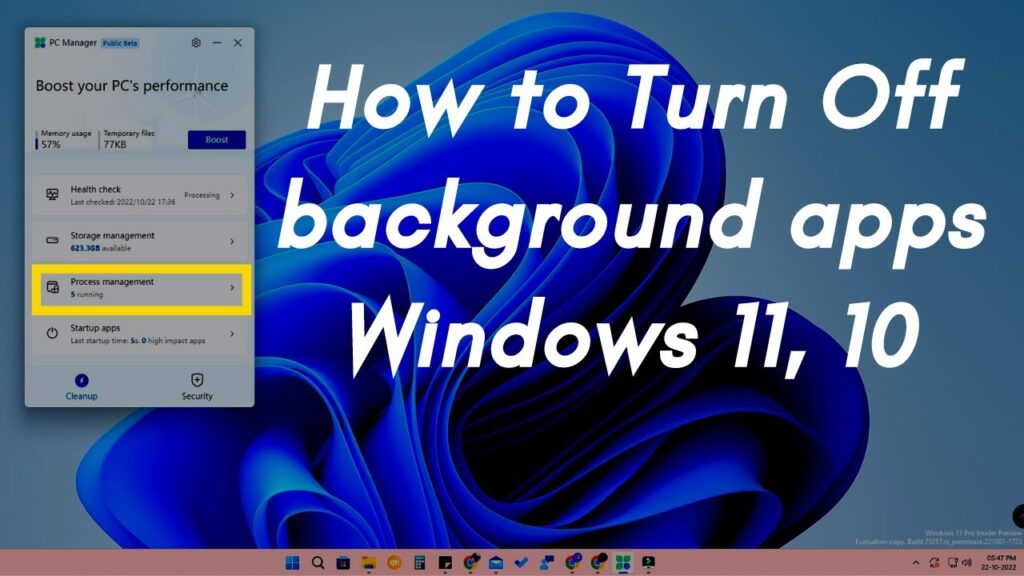
When you start your Windows 11 PC, many applications run in the background—consuming system resources, affecting battery life, and sometimes even slowing down performance. Some apps continue to operate even when you’re not actively using them, using CPU cycles, memory, and network bandwidth.
I’ve optimized multiple Windows systems for better performance by managing and disabling unnecessary background apps, especially on laptops with limited resources. This guide explains how to stop background apps in Windows 11 using all available methods—thoroughly and accurately.
General shopping ads
SEO Meta Description:
Learn how to stop background apps in Windows 11 step by step to improve performance, save battery, and reduce CPU and RAM usage.
What Are Background Apps in Windows 11?
Background apps are programs that continue to run in the background even when you’re not actively using them. These include apps from the Microsoft Store, system utilities, and some third-party programs. While some are essential (like antivirus software), others are not always necessary.
Shopping ad

- Dimensions: 7.5" x 4.3" x 2.2". Compact size and lightweight make it easy to carry and put into your backpack, handbags or laptop bag without taking much space. Suitable for family use and daily organization. Note: Small mesh pockets are ideal for charging cords no longer than 3ft; longer cables (over 3ft) fit better in the larger compartments
- Quality Material: This electronic organizer travel case made of high quality durable waterproof oxford and soft sponge inside to secure your gadgets in place and deliver a quick access whenever you want. Water-resistant fabric protects your gear from unexpected splashes, keeping all your electronic essentials safe and secure
- Double Layers Design: This tech pouch features a double-layer interior design with 8 compartments, including multiple see-through mesh pockets and ample space to store your cords, cables, USB drives, cellphone, charger, mouse, flash drive and more, keeping all accessories neatly organized and tangle-free
- Practical and Convenient: Comes with a comfortable hand strap for easy carrying; You may carry it in your hand when heading out. Durable and smooth zipper closure keeps your favorite device securely, convenient for you to have quick access to the items inside the case
- Portable and Lightweight: The small size and lightweight design durable cable organizer pouch is a perfect choice when going on holiday, business trip, travel, office. Enjoy hassle-free travel without wasting time on tangled accessories. Great gift for yourself also a nice share with families and friends. (No include cords, electronic accessories)
As an Amazon Associate I earn from qualifying purchases.
Disabling or limiting these apps can:
- Improve boot time
- Reduce CPU and RAM usage
- Save battery on laptops
- Improve system responsiveness
How to Identify Background Apps in Windows 11
Before disabling anything, it helps to know what’s running.
Method 1: Use Task Manager
- Press Ctrl + Shift + Esc to open Task Manager
- Go to the Processes tab
- Check which apps show high CPU, Memory, or Disk usage
- Note apps that you don’t recognize or rarely use
I make it a habit to review this every few weeks, especially after installing new software.
Free tools Windows power users keep installed
One-click scans. No signup required.
Step-by-Step Guide to Stop Background Apps in Windows 11
There are multiple methods, and each one covers a different type of background activity. It’s best to combine them for complete control.
Method 1: Disable Background App Permissions from Settings
Shopping ad

- 【UPGRADED LAPTOP CLEANING KIT 】 The macbook cleaning kit computer screen cleaner comes with a number of accessories including a retractable large brush, polishing cleaning cloth X 2, keycap puller, metal pen tip, flocking sponge, thin soft brush, soft plastic lens cleaning pen, 5 replacing cloth, large cleaning microfiber cloth. You deserve the comprehensive computer cleaning kit keyboard vacuum at a low cost
- 【PROFESSIONAL KEYBOARD CLEANING KIT】 The laptop screen cleaner keyboard cleaner can pull out the keycaps of gaming keyboards and mechanical keyboards. A retractable keyboard brush works on laptops and keyboards, while the mini high-density brush is great for deep cleaning between keys for cleaning between flatter keys on a laptop, the metal pin tip gently removes any stains. This electronic cleaning kit macbook cleaner totally meets professional cleaning needs
- 【OFFICE DESK ACCESSORIES】This keyboard cleaner kit is easy to use and can clean your keyboard and electronic screen with just one swipe. Wiping with the 2mm thicken widen polishing cleaning cloth designed at a right angle for better fitting screen corners of computers with our recyclable cleaning spray, The laptop cleaner kit for macbook effectively absorbs stubborn stains, leaves no discoloration, no streaks, and no fiber shedding on the screens
- 【MULTIFUNCTIONAL TOOLS 】Mini soft brush and soft plastic lens cleaning pen are specially designed for DSLR camera screen, lens, and other delicate surfaces. 5 more cleaning cloths of it supplied for replacement. The flocking sponge is an excellent tool for cleaning earbuds charging cases, And the earbud cleaning kit is ideal. This electronics for college students is equivalent to 10 other electronic cleaning kit
- 【PORTABLE DESIGN & CLEANER TOOL】 The office supplies is compact in design, easy to carry, and you can easily take it anywhere. It's convenient to keep one in a drawer, one in your car, or in your bag and dorm. It is easy to use and can clean your keyboard and electronic screen with just one swipe. Is the college essentials cleaning tool for your friends, family, colleagues and students
This is the official way to stop Microsoft Store apps from running in the background.
PC Slower Than It Used to Be?
A free scan shows the junk files, broken settings and background clutter dragging Windows down - then fixes them in one click.Free scan · Windows 10 & 11Crashes, No Sound, or Screen Glitches?
Random freezes, missing sound and display glitches usually trace back to one bad driver. Find and replace yours safely.Free scan · under a minuteSteps:
- Press Windows + I to open Settings
- Go to Apps > Installed apps
- Click the three-dot menu next to the app you want to manage
- Select Advanced options
- Under Background apps permissions, choose:
- Never – to stop the app from running in the background
- Power optimized – to allow background activity based on battery usage
Repeat for each unnecessary app.
I always disable background access for apps like Xbox Game Bar and Skype, which I rarely use.
Method 2: Disable Startup Apps
Some apps start automatically when Windows boots and run in the background.
Steps:
- Press Ctrl + Shift + Esc to open Task Manager
- Click the Startup apps tab
- Right-click any unnecessary app
- Choose Disable
Common apps to disable:
- Microsoft Teams
- OneDrive (if not using it)
- Third-party updaters or launchers
Disabling these can reduce boot time and initial RAM usage. I’ve seen major improvements on older laptops with this method.
Method 3: Turn Off Background Services in System Configuration
Shopping ad

- Compatible Space: This electronics organizer bag features 2 zippered mesh pockets fits phones, standard power banks, 4 elastic loop pouches for small items, 2 elastic loop pouches for wireless headphones and small chargers. Elastic loops for phone charging cable. And specific slots for SD cards. Please check the size to ensure it meets your needs
- Lightweight Travel Accessories: The size of the electronic organizer travel case is 10.6" L x 7.5" W x 1.2" H, Compact but substantial size fits your intended bag or space. Suitable for traveling use and daily organization
- Keep Everything Organized: This compact travel organizer features dedicated compartments for your phone charger, cables, and tech accessories, keeping them tangle-free and ready to go. You can find travel accessories quickly, no chasing cords in your pack anymore
- Durable Travel Essentials: Features double zippers for easy access, elastic loops with non-slip grips for daily protection. Organizer for office use and traveling, (Not including cords, electronic accessories). It can serve as a travel checklist. Before you leave a place, just open the case and check if everything is there, preventing you from leaving things behind
- Versatile Use: Its practicality and convenience make it a travel essential bag. It is suitable for a weekend trip, business trip, and travel. This organizer pouch is suitable for office, business, daily use and can be given as a gift for friends, family, or men, for birthdays, Valentine's Day, Christmas Day, Father's Day
Some background tasks are managed through services.
Steps:
- Press Windows + R, type msconfig, and press Enter
- Go to the Services tab
- Check Hide all Microsoft services
- Review the list and uncheck non-essential services (e.g., Adobe Updater, gaming services)
- Click Apply and OK, then restart your PC
Be cautious—do not disable services unless you’re sure what they do.
Method 4: Use Battery Settings to Limit Background Apps
For laptops, battery optimization settings can control background activity.
Steps:
- Open Settings > System > Power & battery
- Scroll down and click Battery usage
- View apps by Background usage
- Click on any high-usage app
- Select Manage background activity
- Change background permission to Never
This is especially helpful when you’re traveling or using your laptop without power.
Shopping ad

- Universal fit: ColorCoral cleaning gel, simple and convenient cleaning kits for PC/laptop keyboard and other rugged surface, such as the car vent, camera, printer, telephone, calculator, Instrument, speaker, air conditioner, TV and other appliances
- Safe cleaning gel: The keyboard cleaner gel is made from natural gel, no sticky to hands, smells sweet with lemon fragrance, no stimulation to skin
- Easy dust cleaning: Make sure your hands are dry and clean, knead the cleaning gel into a ball, press the cleaning gel slowly into the keyboard, car vent and rugged surface till the cleaning gel could touch the bottom and then pull out, the dust would be carried away with the cleaning gel
- Reusable: The keyboard cleaning gel could be used repeatedly till the color turn to dark or it become sticky, then you have to replace the cleaning gel with a new one. After cleaning, please stock the cleaning gel in cool place. (Note: Don’t wash the gel in water.)
- In the package: 1 can of universal cleaning gel, we provide the cleaning gel with brand new, if you find the package broken, the cleaning gel dirty, or any other quality issues, please email us through message, we provide you new one soon
Method 5: Use Group Policy Editor (Windows 11 Pro)
If you’re using Windows 11 Pro or Enterprise, you can enforce global rules using Group Policy.
Steps:
- Press Windows + R, type gpedit.msc, and press Enter
- Navigate to:
Computer Configuration > Administrative Templates > Windows Components > App Privacy - Double-click Let Windows apps run in the background
- Select Enabled, then choose Force Deny from the drop-down
- Click Apply and OK
This disables all background activity for Microsoft Store apps at once.
I use this method on work machines where minimal background activity is preferred for security and stability.
Method 6: Use Registry Editor (for All Editions)
If you’re on Windows 11 Home, use the Registry to disable background apps.
Steps:
- Press Windows + R, type regedit, and press Enter
- Navigate to:
HKEY_CURRENT_USER\Software\Microsoft\Windows\CurrentVersion\BackgroundAccessApplications - If the key doesn’t exist, create it
- Create a new DWORD (32-bit) Value
- Name it GlobalUserDisabled
- Set the value to 1
- Restart your computer
Always back up your registry before making changes. This method applies system-wide for the current user.
Shopping ad

- Award-Winning Compact Design & EDC-Ready Gift Choice: Weighing only 0.09 lb and sized like a credit card, this compact laser measure is designed for everyday carry. It slips easily into a pocket, tool pouch, or bag, and can attach to a keychain for quick access wherever you go. Its minimalist design, premium tactile finish, and practical one-button measuring make it a useful EDC gadget for DIYers, real estate agents, homeowners, and tech enthusiasts. A thoughtful gift for men on any occasion
- One-Button Easy Measuring, Simple to Use: Designed with simple one-button operation, this compact laser tape measure makes quick measuring easy without complicated controls. Just press to measure room dimensions, furniture spacing, window height, wall décor placement, and everyday distances around the home. Ideal for users who want a smart, pocket-size measuring tool that fits naturally into an everyday carry (EDC) setup and feels intuitive, modern, and easy to use
- Fast & Accurate Indoor Measurements with Class 2 Laser: Measure distances from 0.16 ft to 98 ft with up to ±1/16 in / ±2 mm accuracy. With quick measurement response in about 0.2 seconds, HOTO helps you check spaces efficiently for home renovation, furniture layout, moving, decorating, craft projects, and DIY planning. Built with a Class 2 laser for everyday indoor measuring; use as directed and avoid direct eye exposure
- Low-Power OLED Display & USB-C Rechargeable Convenience: The low-power OLED display provides clear indoor readings while helping reduce battery drain. With USB-C rechargeable design, auto shut-off, and up to 1000 measurements per charge, this digital laser measure is built for repeated daily use without frequent battery replacement. Compact enough to keep in a drawer, toolbox, bag, or pocket
- Useful for Home, Work & Everyday Projects: From home renovation and furniture measuring to room planning, real estate checks, interior design, and light construction projects, this pocket-size laser distance measure is made for practical everyday use. Compact enough to keep in a drawer, toolbox, bag, or pocket, it is a stylish measuring tool that feels just as giftable as it is useful
Method 7: Uninstall Unused Apps
Some apps run in the background because they’re installed—even if unused.
Steps:
- Go to Settings > Apps > Installed apps
- Click the three-dot menu next to the app
- Choose Uninstall
I recommend removing pre-installed bloatware, manufacturer utilities, or trial apps you don’t use.
Recommended Free Tools
Tips to Maintain a Lightweight System
- Review background apps monthly
- Check Task Manager for new additions after installing software
- Use Windows Security > App & browser control to prevent unwanted background tools
- Avoid third-party “cleaning tools” that promise background optimization—they often add more bloat
When to Keep Background Apps Running
Not all background activity is bad. Keep background access enabled for:
- Antivirus or security software
- Cloud storage clients (e.g., OneDrive, Dropbox) if you use sync
- Messaging apps you use frequently
- System updates or drivers (if managed by OEM apps)
I always allow my antivirus and backup tools to run in the background. The goal is to stop only what’s unnecessary.
Conclusion
Stopping background apps in Windows 11 is one of the best ways to speed up your system, improve battery life, and reduce unnecessary CPU and memory usage. Whether you do it through Settings, Task Manager, Group Policy, or the Registry, there are several reliable options to take control of what runs in the background. I’ve applied these steps across different systems—from budget laptops to work desktops—and consistently saw better performance and responsiveness. Review your background apps regularly and only keep what’s essential.
More shopping ads
Product prices and availability are accurate as of the date/time indicated and are subject to change. Any price and availability information displayed on Amazon at the time of purchase will apply.
Do these 3 things before closing this tab:
1Scan for outdated or missing drivers - takes under a minute2Repair Windows errors before they cause bigger problems3Fix the driver behind crashes, sound loss and screen glitches